Microsoft Teams
- Home /
- Microsoft Teams
description: “microsoft teams”
Accessing Microsoft 365 Teams
for CUNY Students, Faculty, and Staff
Below, you will find two ways of accessing Microsoft Teams. One way is by installing Teams standalone. Second way would be through installing Teams with the Microsoft Office 365 suite. See a brief walk through of Teams.
Teams is available through the CUNY Microsoft Office 365 license.
Installing Microsoft Teams only
First, use this link to directly download and install Microsoft Teams to your computer. Click on Download Teams. Then, follow the installation steps.
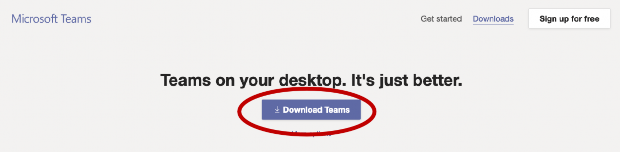
Download Teams button on Microsoft’s website
Here, you will enter your CUNYFirst/Blackboard username, followed by @student.qcc.cuny.edu.
It will be FirstName.LastName##@student.qcc.cuny.edu. The numbers you enter are the last two numbers of your ****EMPLID. Your **EMPLID **can be found on your **CUNY **ID card. Click Sign-in.
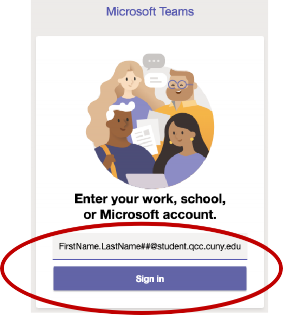
Initial username login for Teams
After entering your username, you will be taken to CUNY Web Applications login.
Enter the same username and **CUNYFirst/Blackboard **password.
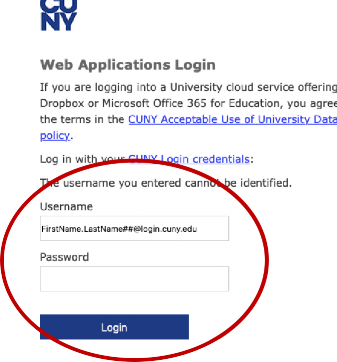
CUNY’s Web Applications Login
Installing Teams with the Microsoft Office 365 suite
Besides installing Microsoft Teams on your computer, you can sign in to your Office 365 account and use Teams from there. Before logging in to Office 365, make sure the browser you are using is either **Google Chrome **or Microsoft Edge. There are multiple ways to login through you CUNY campuses website. You can also go directly to portal.office.com.
Here, you will login with your CUNYFirst/Blackboard credentials. It will be
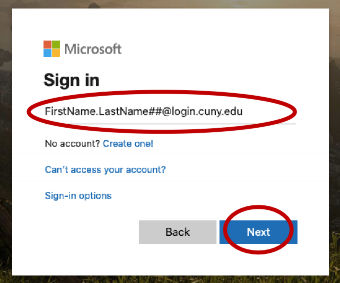
Microsoft portal login
You will be taken to CUNY Web Applications Login. Enter the same CUNYFirst/Blackboard username and the CUNYFirst/Blackboard password. Click Login. (Keep in mind that if you need to reset your password, you need to do it through CUNYFirst/Blackboard).
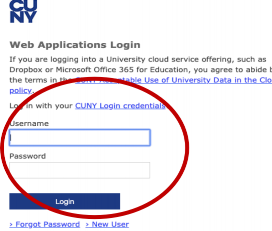
CUNY Web Applications Login
Choose if you would like to remain logged in.
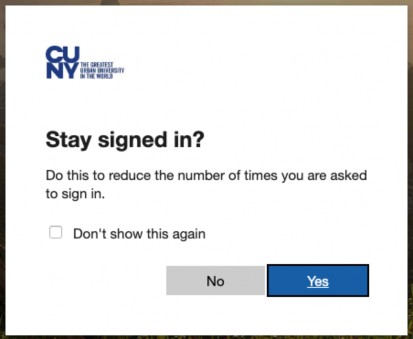
Login option to save credentials signed in for longer period of time
You will find Microsoft 365 applications at the top. From there, choose Teams. You also have the option to install the Office suite on your computer.
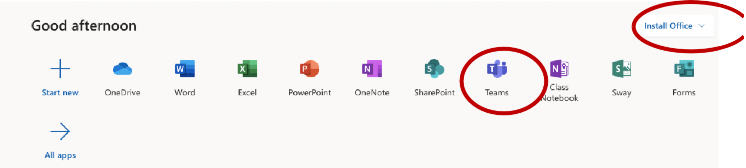
Microsoft 365 applications along with Teams
Walking through Teams
In Microsoft Teams, you can create or join a team, make video/audio calls, instant message, upload/create files, and schedule working hours.
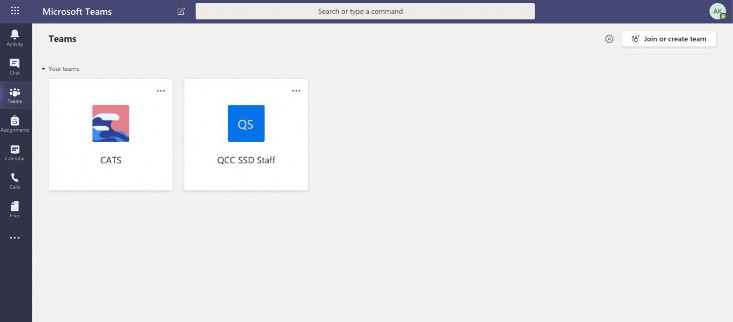
Channels in Microsoft Teams
By clicking on Activity, it will open up your team’s feed.
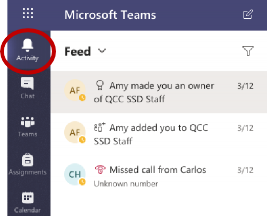
Activity Feed
By clicking on Chat, you will be able to instant message and make video/audio calls. You can also create a contacts list by clicking on Contacts and Create a new contact group. To start chatting, click on the new chat icon that is adjacent to the search bar at the top, or you can search for the person(s) that you want to chat with using the search bar. Keep in mind that only those that are in the QCC database will appear.
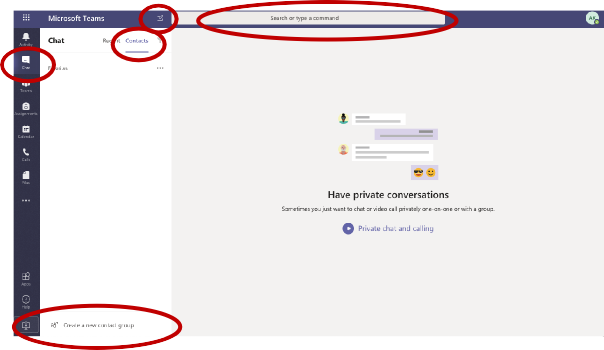
Chat in Teams
By clicking on Teams, you can access the teams that you are a part of, or you can create/join a team.
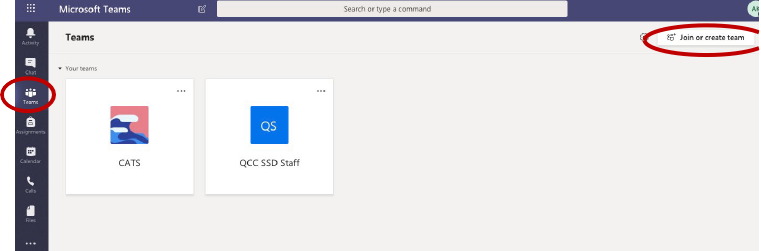
**Joining a team **
When you click on a team, you can start a conversation with your team members under Posts.
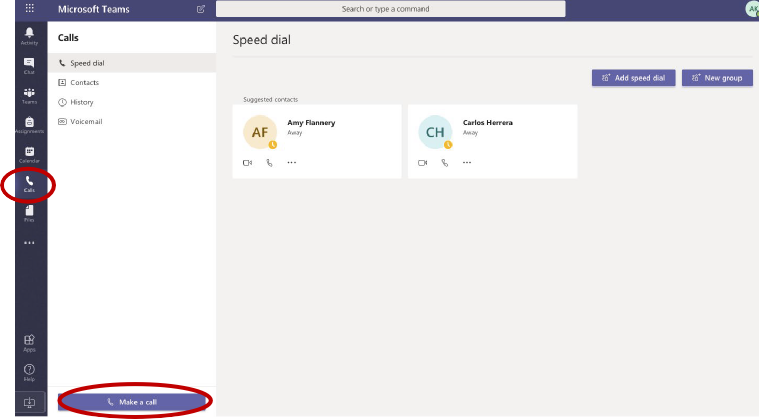
Making calls in Teams
By clicking on Calls, you are able to see missed calls, and you can make video/audio calls.
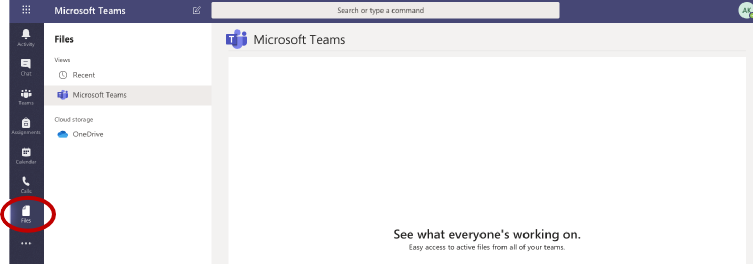
Accessing Files in Teams
By clicking on Files, you are able to access your Teams’ files.